
Find, Run, and Export a Report
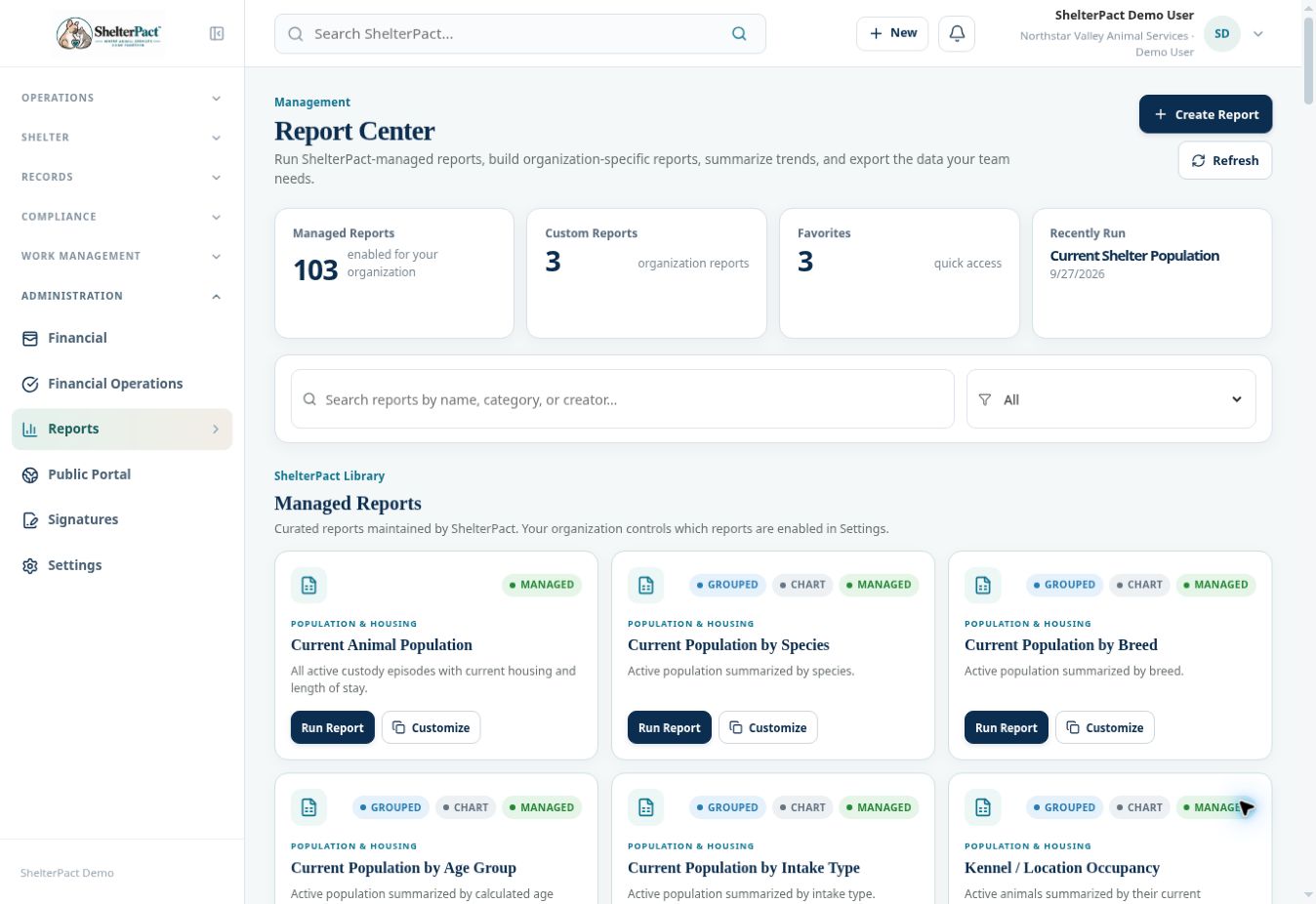
Report Center combines managed, standard operational, and custom reports. Read the report’s scope before comparing its totals to another workspace.
Before you beginOpen Administration → Reports. Confirm your role can access the required data and export functions.
Step-by-step instructions
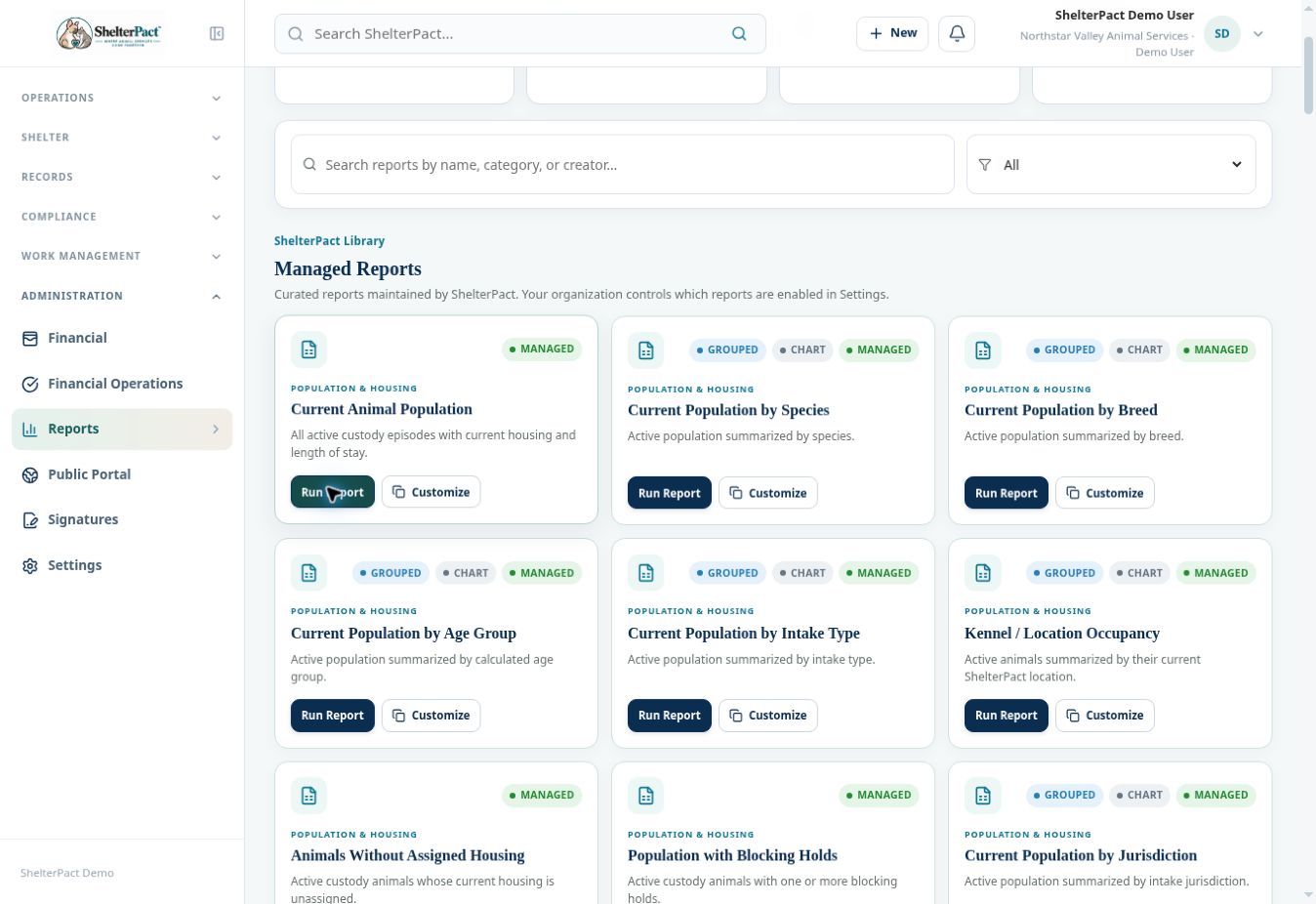
- Search by report name, category, or creator, or select a category. Review Managed Reports, Standard Operational Reports, and Custom Reports.
- Read the report title and description. Distinguish current population from admission history, outcomes from animal identities, and charges from actual payments.
- Select Run Report on the intended card. Review matching rows, record count, summaries, groups, and detail columns.
- Check the report’s defined date or status scope. Do not assume a managed report asks for a date range if its definition already specifies today, month, or year-to-date.
- Review representative rows against known source records before using the result for a decision or official submission.
- Use CSV, Excel, or Print / PDF on Report Results to produce the needed format. Check the exported scope and column meanings.
- Close the result when finished. Use favorites and recently run information for repeat work, but still review scope each time.
Screenshots
Practical checks
A report counting custody episodes can differ from a report counting permanent animal identities. Read the data source and definition.
Troubleshooting
| What you see | What to check |
|---|---|
| The report is missing | Check search/category filters, enabled managed reports, module access, and permissions. |
| The result seems incorrect | Review the definition, status filters, date scope, and sample source records before changing it. |