
Create and Complete an Operational Task
Tasks tracks work that has an assignee, priority, and completion state. Link a task to the record it concerns so staff can find the supporting information.
Before you beginOpen Work Management → Tasks. Confirm who should perform the work and whether an existing task already covers it.
Step-by-step instructions
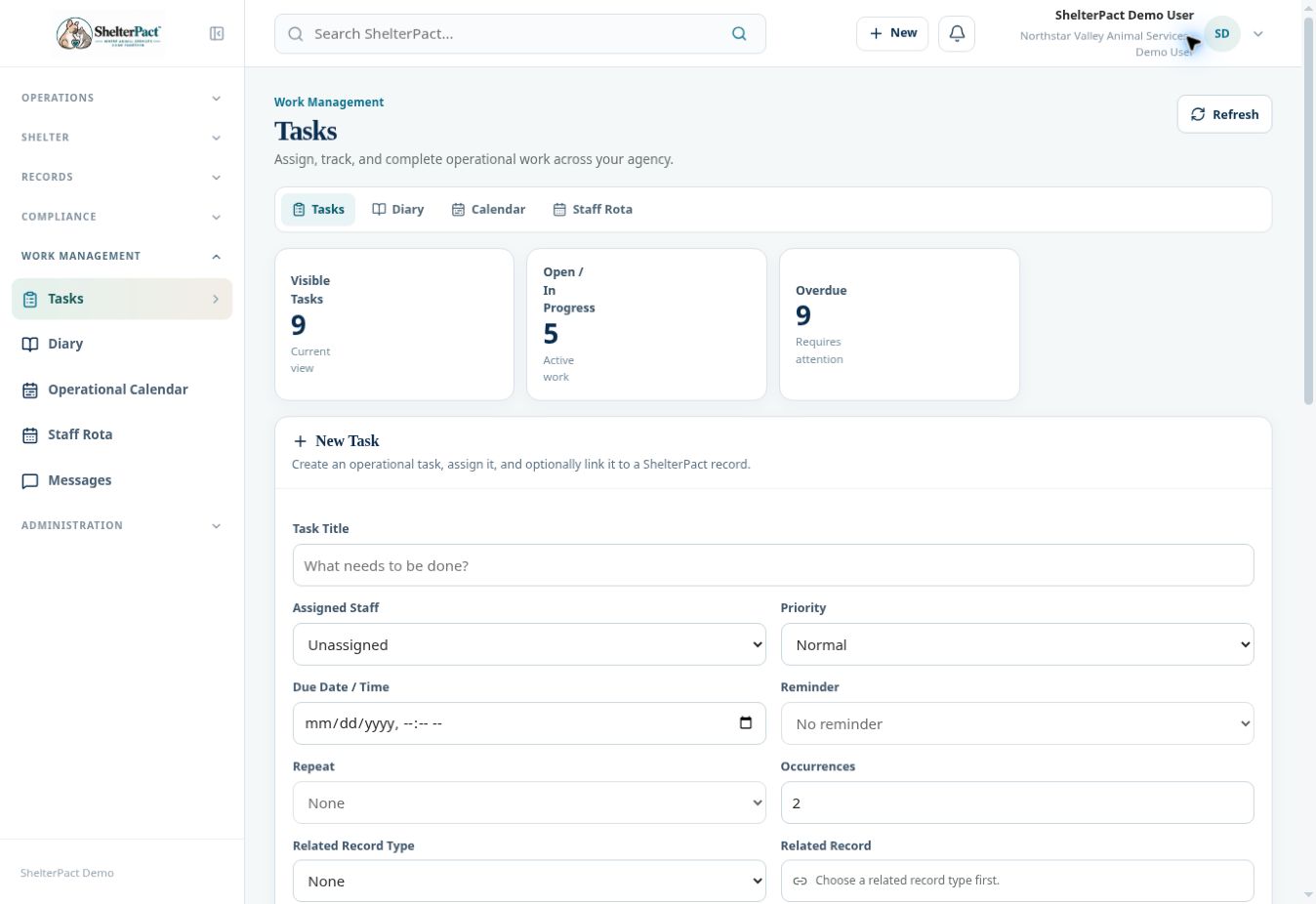
- In New Task, enter a short, specific Task Title describing the action. Use Description for the details, expected result, and useful context.
- Choose Assigned Staff and Priority. Select a due date and time that reflects the operational deadline.
- Choose a Reminder if staff should be notified before the due time. If work repeats, select Repeat and verify Occurrences before creation.
- Choose Related Record Type, then select the actual related record. Confirm its number or name before linking it.
- Select Create Task. Review the task in Task Board and confirm its assignment, deadline, related record, and status.
- Use My tasks and status filters to review your work. Open the related record and perform the action before marking the task complete.
- Select Complete when the assigned work is actually finished. If the task came from a hold, medical event, or compliance record, also update that underlying workflow as appropriate.
Screenshots
Practical checks
Completing a task does not automatically prove that a medical dose was administered, a hold was released, or a case was closed.
Troubleshooting
| What you see | What to check |
|---|---|
| The task is not visible | Check My tasks, the selected status, and whether the task was assigned to another staff member. |
| The same work appears twice | Check whether one task was generated by a workflow before creating a second manual task. |