Navigate ShelterPact and Choose the Right Workspace
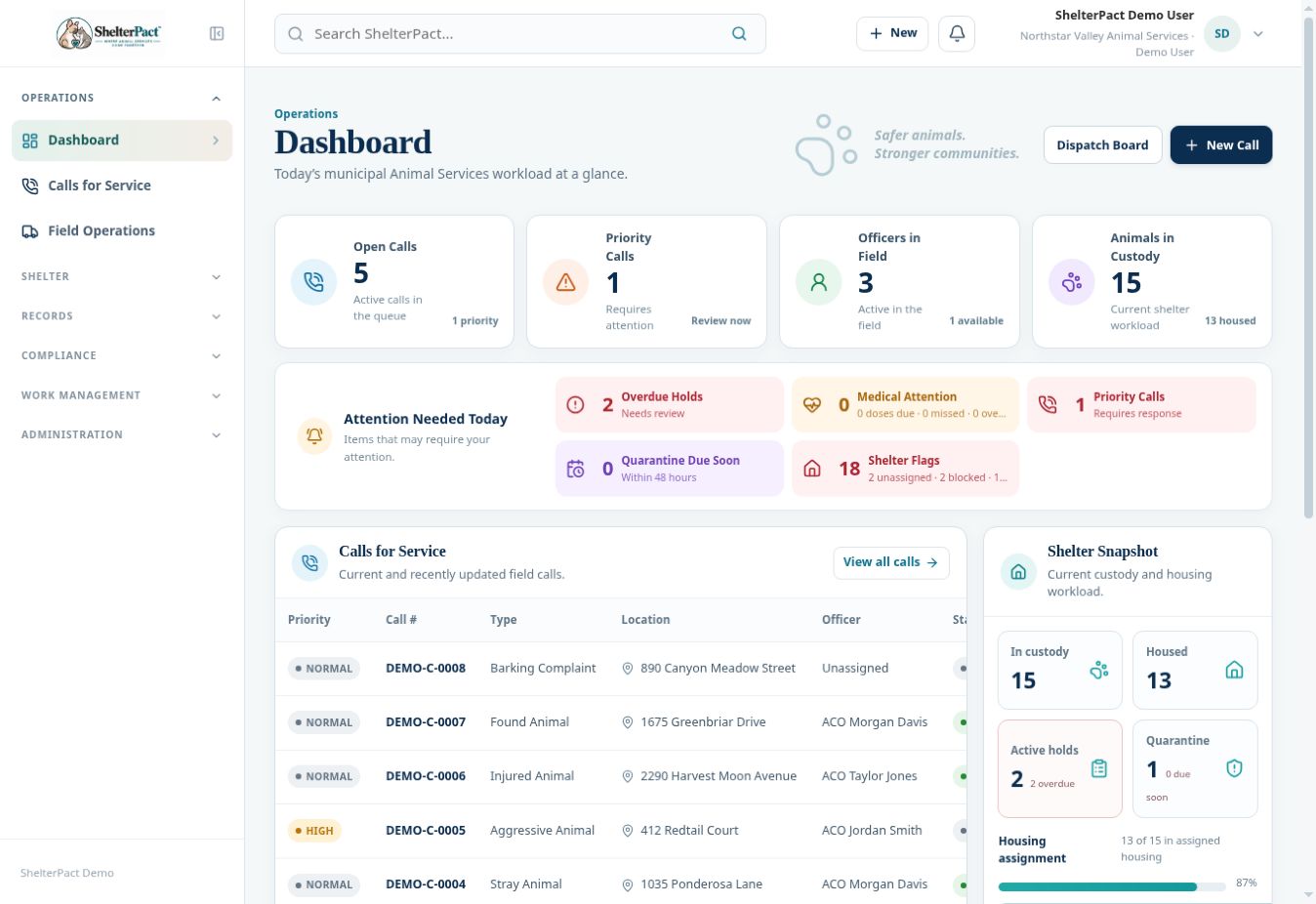
ShelterPact groups staff work into Operations, Shelter, Records, Compliance, Work Management, and Administration. Start with the workspace matching the action you need to perform, then open the linked record for its full context.
Before you beginSign in with the account assigned by your organization. Available modules and actions depend on your role. The shared demo account is intentionally restricted.
Step-by-step instructions
- Open the left navigation. Select a group heading to expand its links. The active workspace is highlighted so you can see where you are.
- Use Operations for dispatch and field response. Open Shelter for active custody, housing, restrictions, care, and movement pathways.
- Use Records to search permanent identities and investigations. An animal or person can remain in Records after a particular operational event has finished.
- Use Compliance for licenses, rabies certificates, citations, and renewal follow-up. Use Administration for finance, reporting, public services, signatures, and settings.
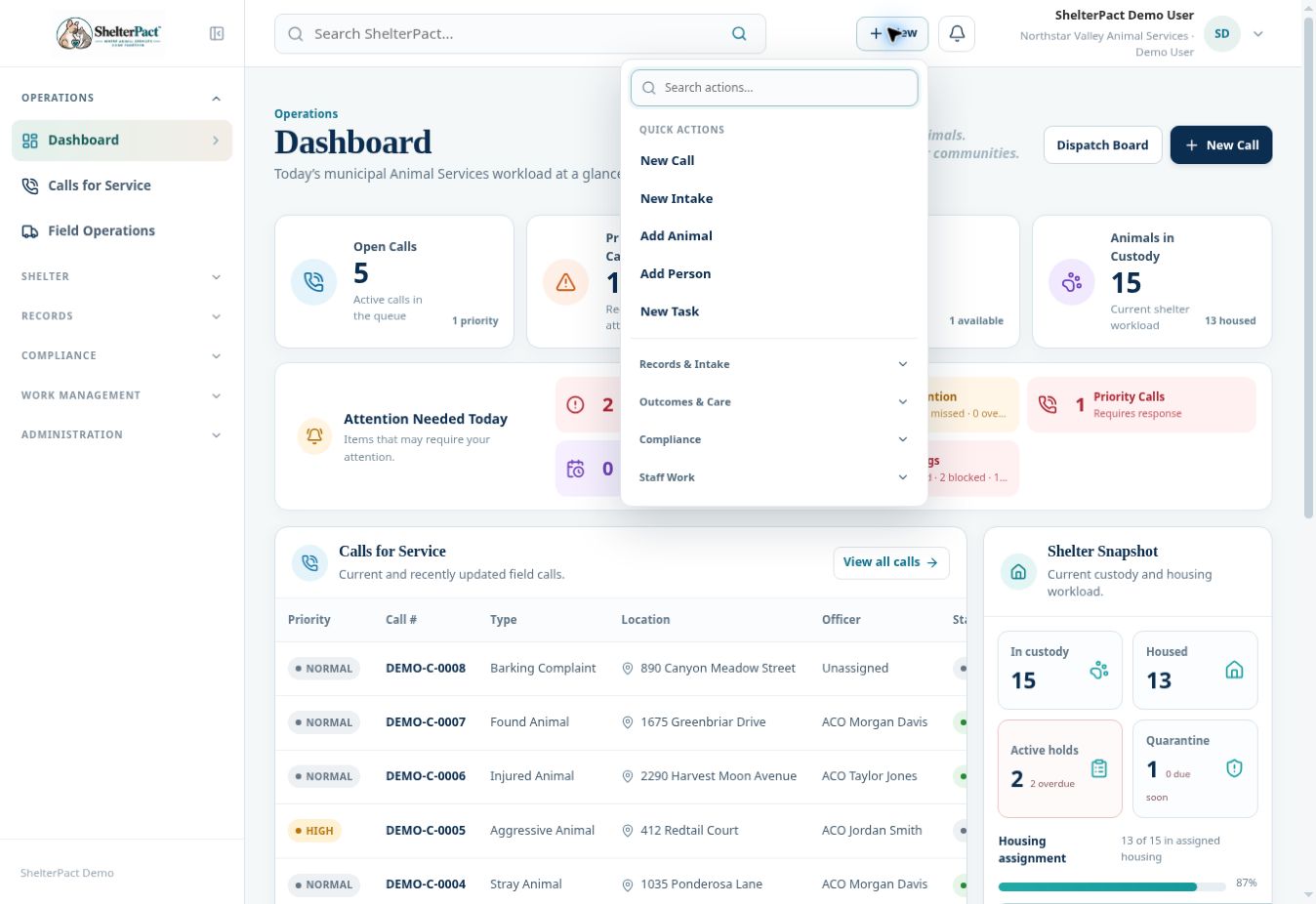
- Open New in the top bar to start common work. Search quick actions or expand its grouped sections; select the action matching the event.
- Use Collapse navigation when you need more space. Follow record names, reference numbers, or View links to open details rather than relying on a summary card alone.
- When finished, open the staff name/avatar menu and select Sign Out, especially on a shared workstation.
Fields and meanings
| Field / control | What to review |
|---|---|
| Operations | Dashboard, Calls for Service, Field Operations |
| Shelter | Current Population, Kennel Board, Intake, Holds & Quarantine, Medical, Movements & Outcomes, Inventory & Stock |
| Records | Animals, People, Partner Organizations, Addresses, Cases, Forms & Documents |
| Compliance | Compliance Operations, Licensing, Rabies Compliance, Citations |
| Work Management | Tasks, Diary, Operational Calendar, Staff Rota, Messages |
| Administration | Financial, Financial Operations, Reports, Public Portal, Signatures, Settings |
Screenshots
Practical checks
A visible page may provide view access while editing still requires a separate permission.
Troubleshooting
| What you see | What to check |
|---|---|
| A menu item is missing | Ask your administrator to check the relevant module and your assigned role. |
| An action is disabled | Check permissions, the current record state, and any workflow requirements before retrying. |