
Schedule Diary Entries and Review the Calendar
Diary records appointments, dated operational notes, and follow-ups. Operational Calendar displays diary items alongside tasks and staff shifts.
Before you beginOpen Work Management → Diary. Confirm the time, assigned staff, and related subject before creating an appointment.
Step-by-step instructions
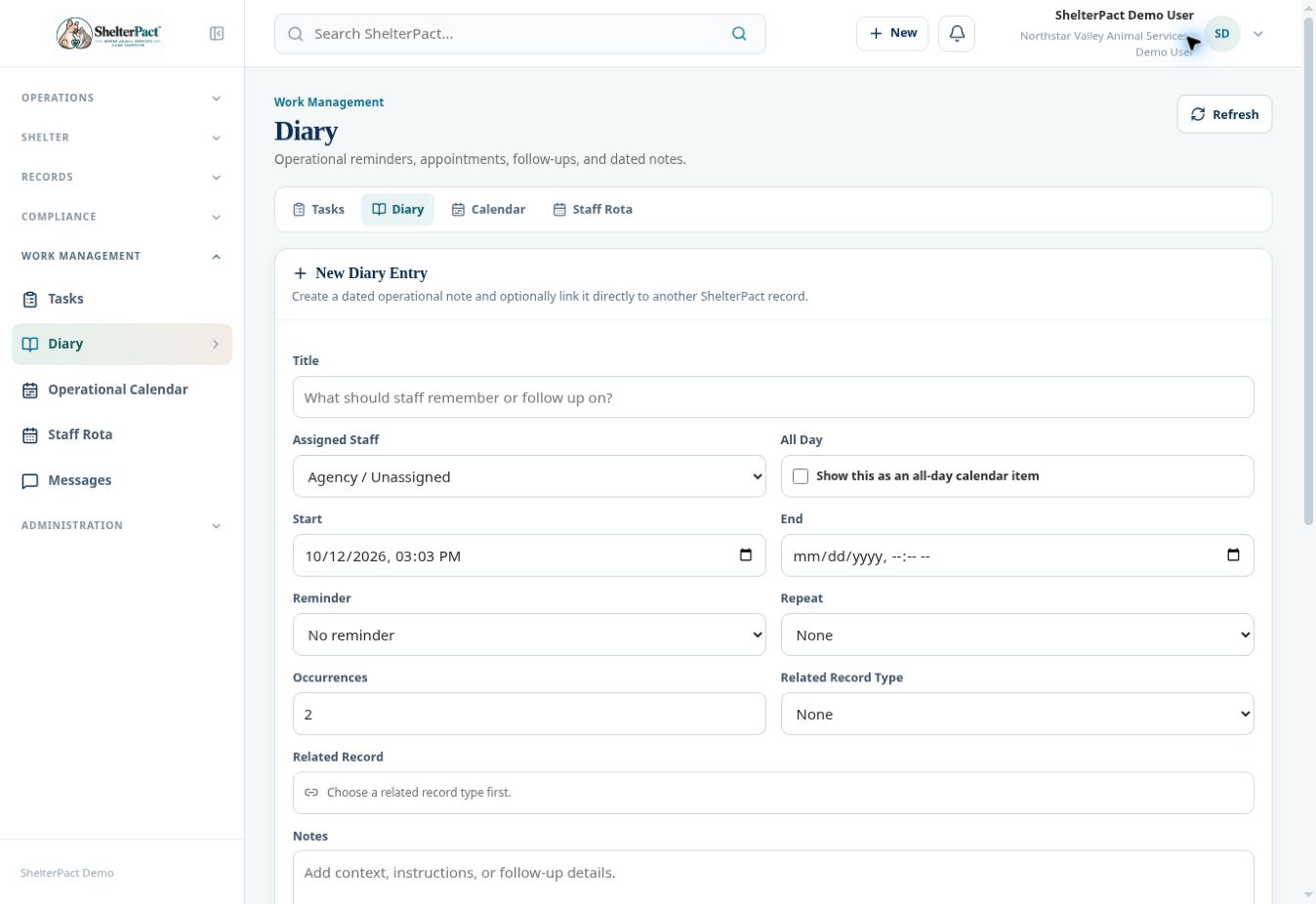
- Enter a Title and choose Assigned Staff, or leave it at Agency / Unassigned when the item is agency-wide.
- Choose Start and End. Use All Day for an item that should occupy a calendar date rather than a specific time.
- Select a Reminder and, when appropriate, Repeat and Occurrences. Review the schedule so it does not create unintended appointments.
- Choose the Related Record Type and record, then add Notes explaining the appointment or follow-up. Select Create Entry.
- Review the entry in Diary Entries. Use Complete when it has occurred or its follow-up is finished.
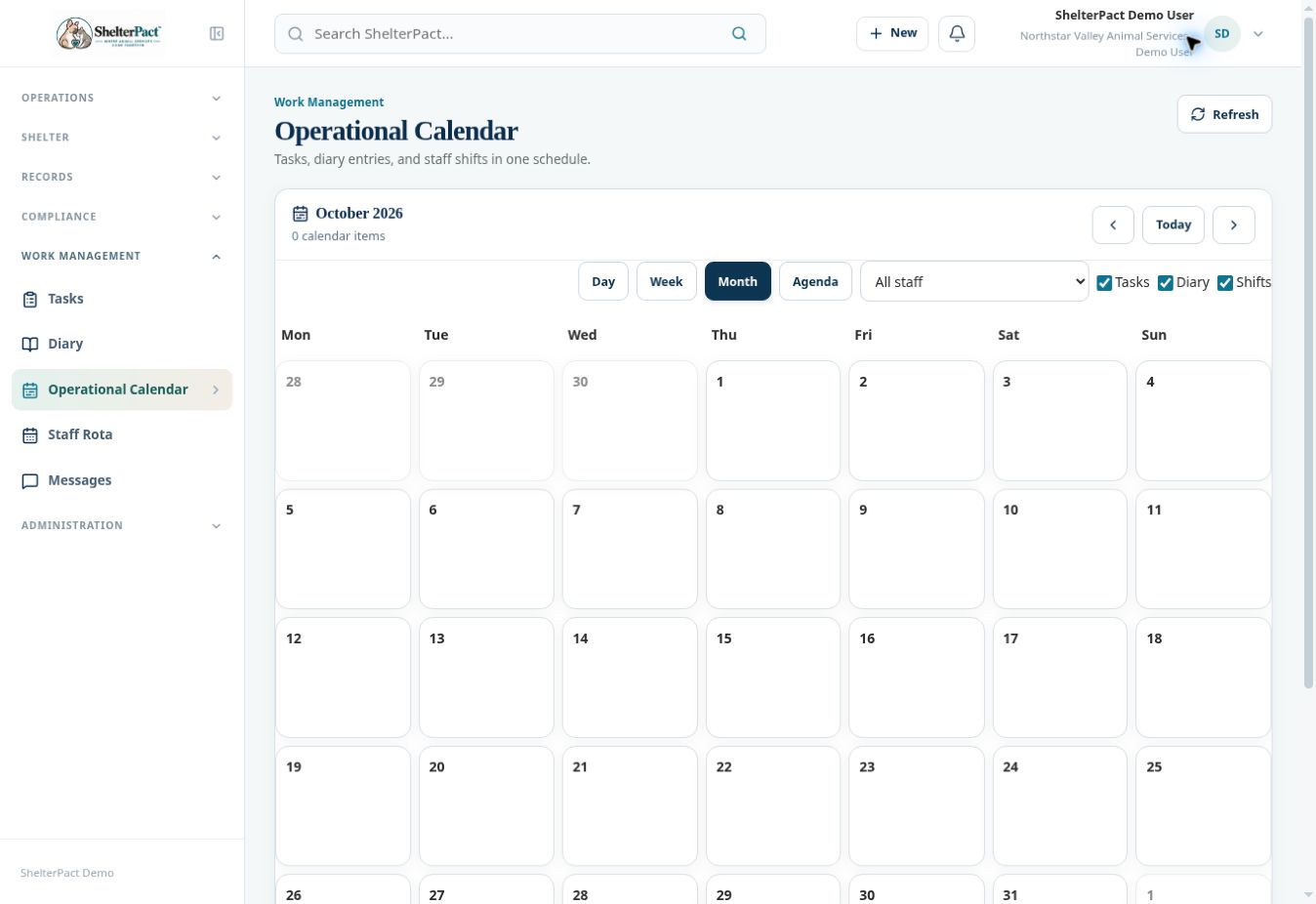
- Open Operational Calendar. Select Day, Week, Month, or Agenda, use Today to return to the current date, and choose the staff filter.
- Enable the Tasks, Diary, and Shifts item types you need to see. Maintain each item in its source workspace rather than relying only on the calendar display.
Screenshots
Practical checks
Confirm your organization’s timezone before scheduling time-sensitive work.
Troubleshooting
| What you see | What to check |
|---|---|
| An entry is missing from the calendar | Check the displayed dates, selected staff, and Diary toggle. |
| The item needs completion tracking | Use Tasks for assigned work; use Diary for the scheduled appointment or note. |