
Record an Examination, Treatment, Test, or Clinical Note
Medical entries preserve clinical events, planned care, and alerts. Record facts and provider information in Medical rather than using the animal’s general notes as the only clinical history.
Before you beginOpen Shelter → Medical or Add Medical on the animal. Have the animal identity, provider, event date/time, and approved clinical documentation available.
Step-by-step instructions
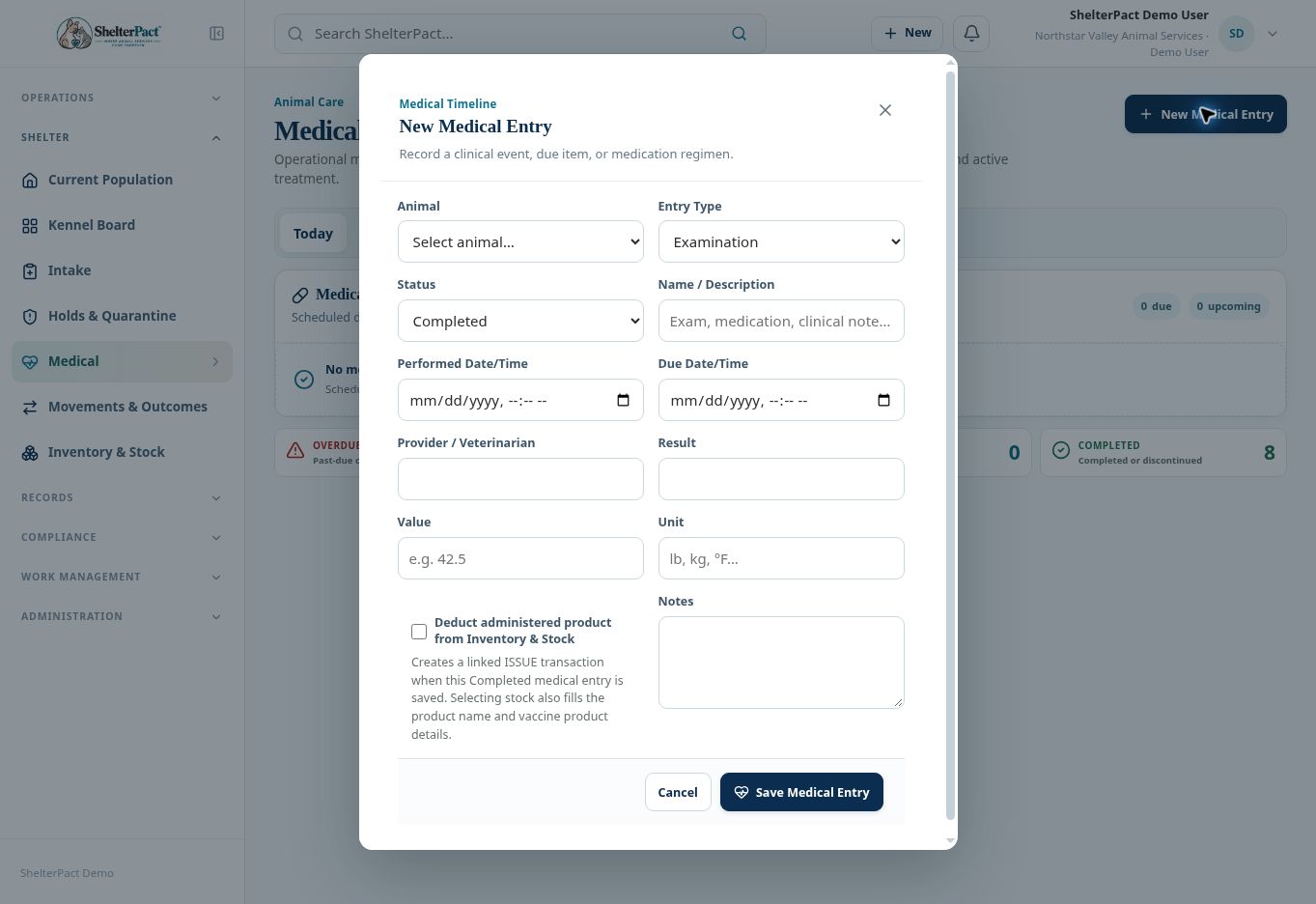
- Select New Medical Entry and confirm the Animal.
- Select Entry Type: Examination, Diagnosis / Problem, Treatment / Procedure, Vaccine, Test, Medication, Weight, Medical Alert, or Medical Note as applicable.
- Select Status to reflect the actual event. Completed means the event occurred; Due, Active, Pending, or Discontinued describe other states.
- Enter Name / Description, Performed Date/Time, and Due Date/Time where relevant. Do not mark planned care as performed.
- Record Provider / Veterinarian, Result, Value, Unit, and Notes as appropriate. Use the correct measurement unit and preserve the provider’s directions.
- If a completed event uses stock, review the inventory deduction option and select the correct product, location, lot when required, and quantity.
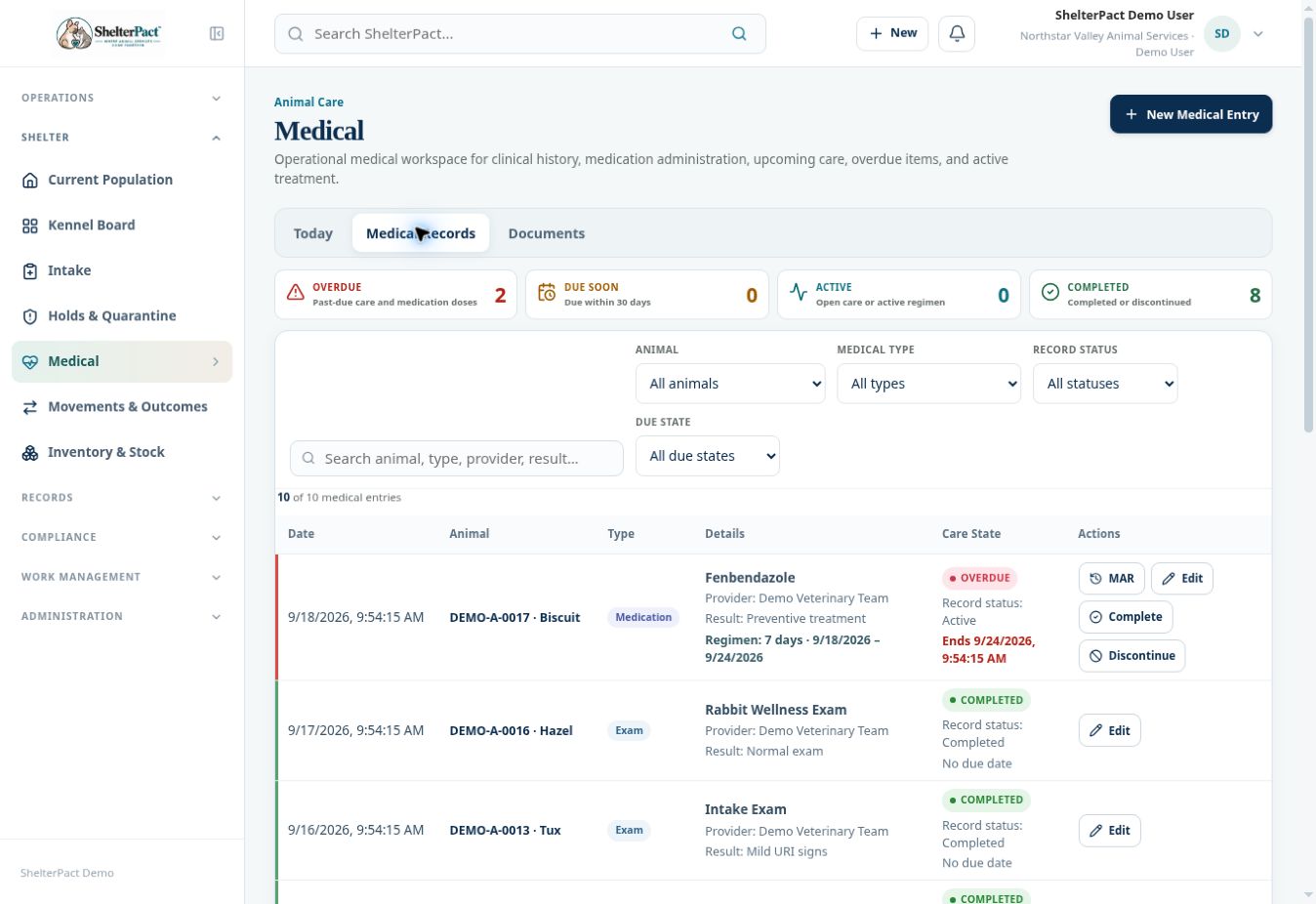
- Select Save Medical Entry. Review it in Medical Records and on the animal’s Medical section, including care state and any due timing.
Screenshots
Practical checks
This guide explains record entry. Clinical diagnosis, medication choice, route, and dose must come from the authorized provider or approved clinical protocol.
Troubleshooting
| What you see | What to check |
|---|---|
| Planned care is shown as completed | Review and correct the record through its authorized Edit control. |
| A measurement seems incorrect | Check both the numeric value and unit rather than adjusting only the number. |