Intake an Animal Using an Existing or New Record
Intake creates the custody episode connecting an animal to the admission event, people, found or pickup location, incident, case, and initial observations. Search permanent records before creating a new identity.
Before you beginHave the admission type and reason, known identifiers, owner or source person, pickup details, and any incident or case number available. Open Shelter → Intake.
Step-by-step instructions
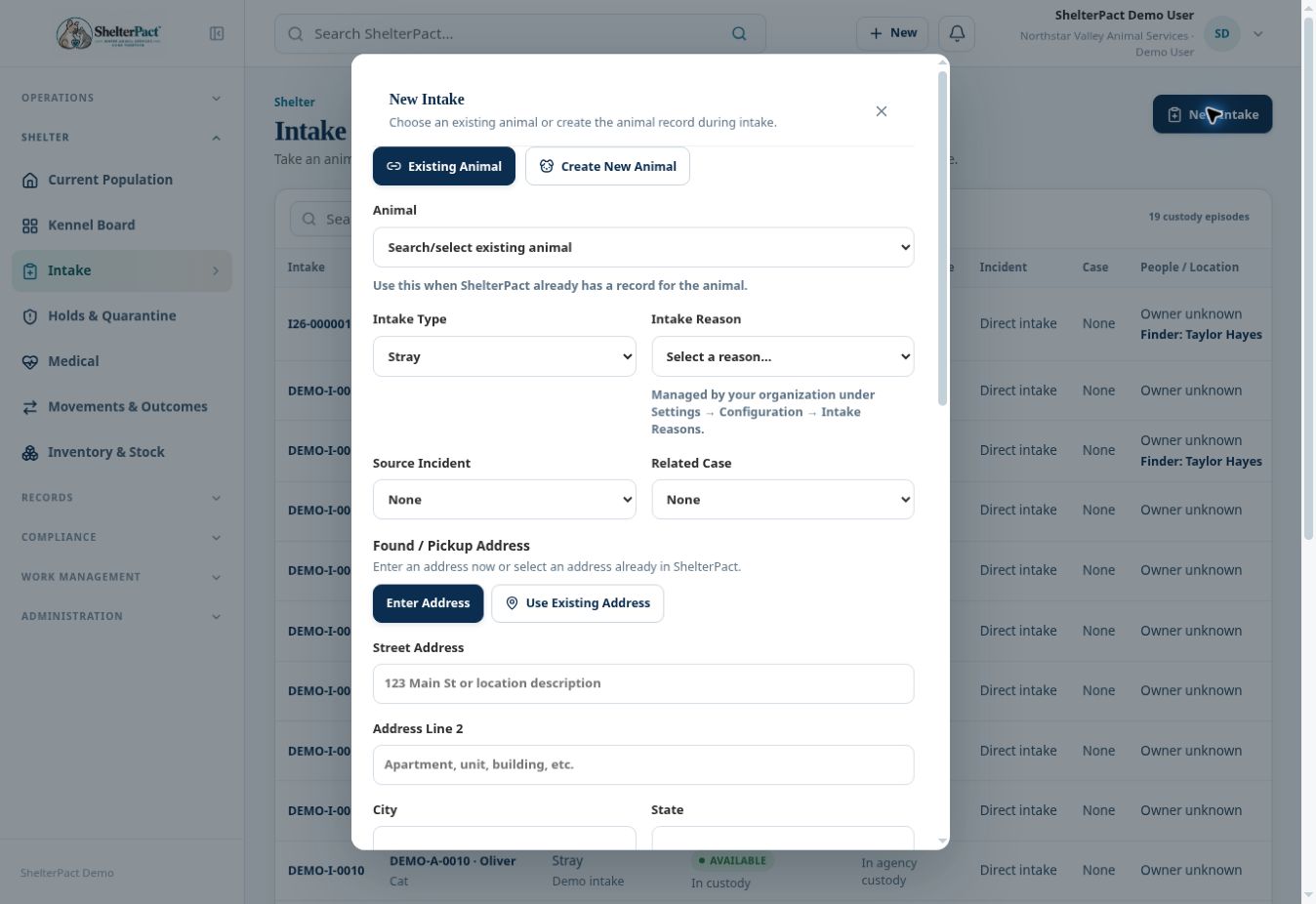
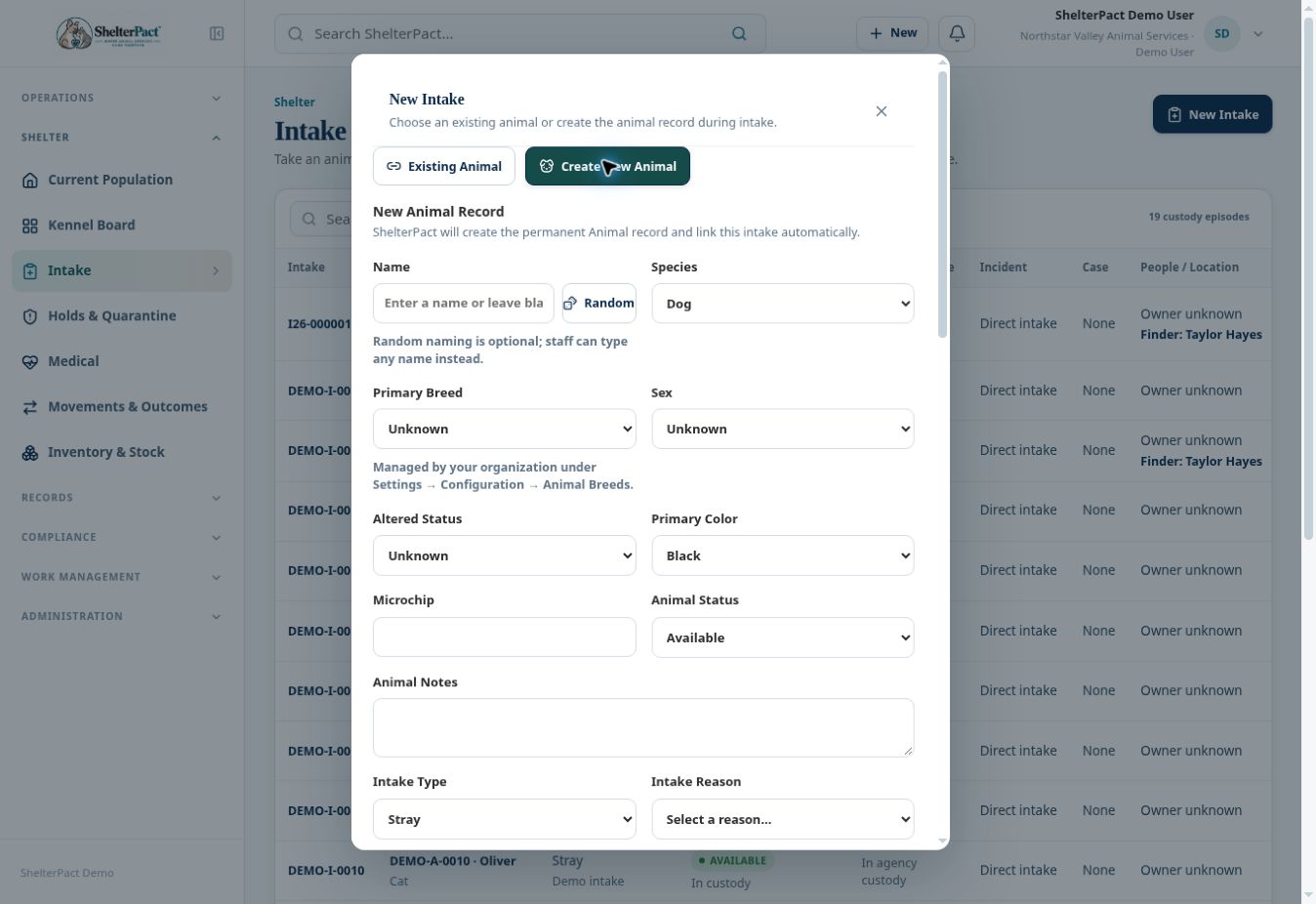
- Select New Intake. Choose Existing Animal when the animal is already recorded, or Create New Animal only after checking for a duplicate.
- For an existing identity, select the correct animal. For a new animal, enter name, species, primary breed, sex, altered status, color, microchip, animal status, and notes as known.
- Choose Intake Type and Intake Reason. These are separate fields: the type classifies the admission while the reason explains why it occurred.
- Link Source Incident and Related Case when the admission resulted from field work or an investigation. Leave unrelated links unset.
- Record Found / Pickup Address using Enter Address or Use Existing Address. Add pickup/location details and jurisdiction to distinguish the location from the person’s home address.
- Link the Owner when known. Choose Source Person Role and Source Person for a finder, surrendering person, reporting party, custodian, transporter, or other source. Use New to add a person when necessary.
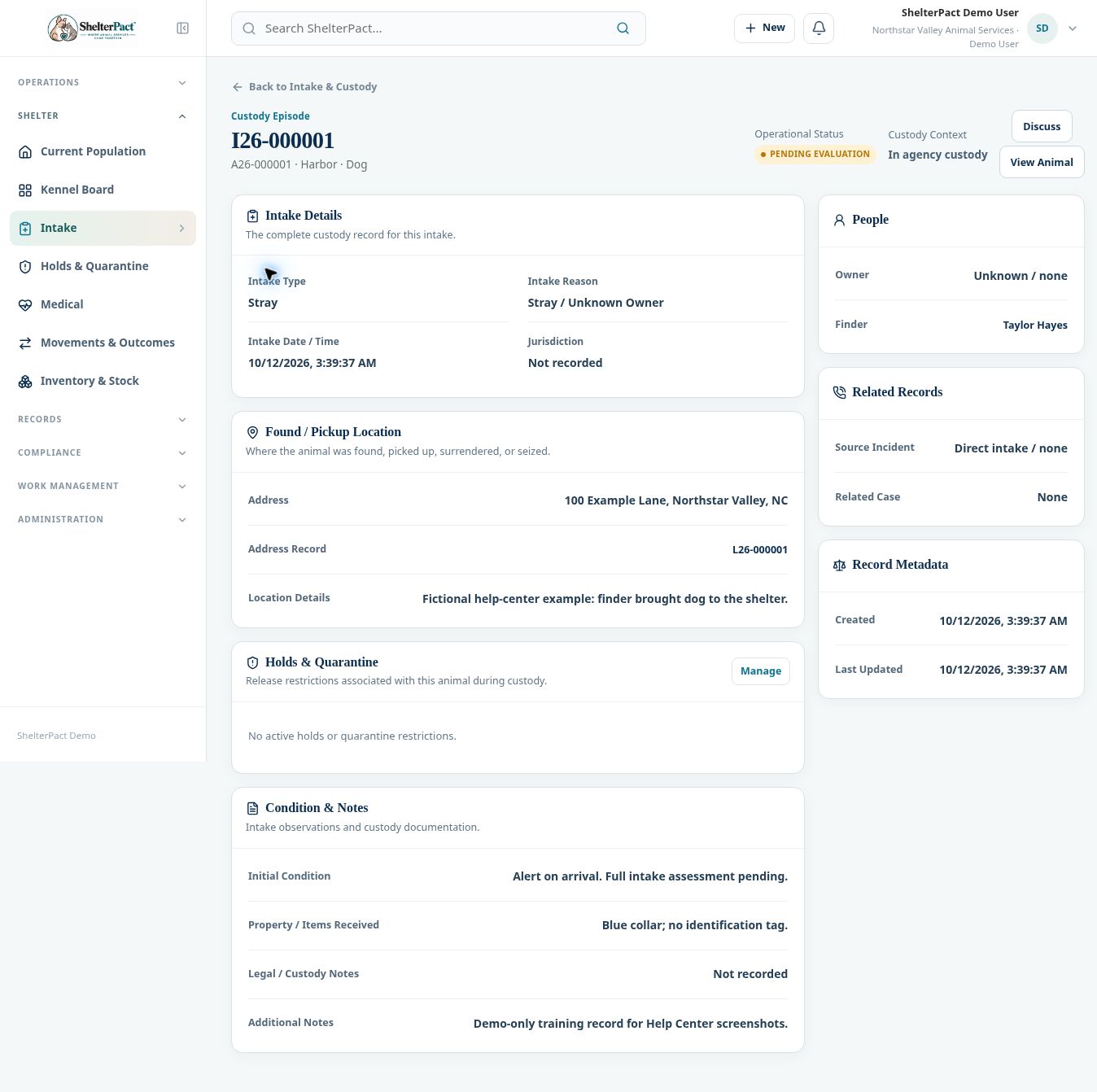
- Record Initial Condition, Property / Items Received, Legal / Custody Notes, and Additional Notes. Separate observed condition from a formal clinical assessment.
- Review the animal and event details, then select Create Intake or Create Animal & Intake. Confirm the resulting intake number, linked animal, and custody state.
- Assign housing, review applicable holds, and record required medical assessment and documents. Confirm any configured automatic intake hold actually appears.
Fields and meanings
| Field / control | What to review |
|---|---|
| Intake Type | Stray, Owner Surrender, Seizure, Protective Custody, Bite Quarantine, Transfer In, or Other in the inspected form. |
| Intake Reason | An organization-managed list, separate from the type. |
| Owner and Source Person | Ownership and the source event role are distinct. |
| Found / Pickup Address | Where the admission event occurred; it may differ from the person’s residence. |
| Initial Condition and Property | Arrival observations and items received with the animal. |
Screenshots
Practical checks
The animal status default should be reviewed. Select a status consistent with evaluation and restrictions rather than assuming Available.
Troubleshooting
| What you see | What to check |
|---|---|
| The animal already has active custody | Review the existing episode; do not create a second admission for the same continuous stay. |
| The record exists but lacks housing | Assign a physical location through the housing workflow. |
| A reason is missing from the list | Have an authorized administrator review Settings → Configuration → Intake Reasons. |