Manage Public Portal Requests and Citizen-Facing Services
Public Portal gives staff a queue for public submissions and a separate organization-branded service page. A submitted request still needs staff review and the appropriate operational workflow.
Before you beginOpen Administration → Public Portal. Confirm the organization and service configuration before processing requests.
Step-by-step instructions
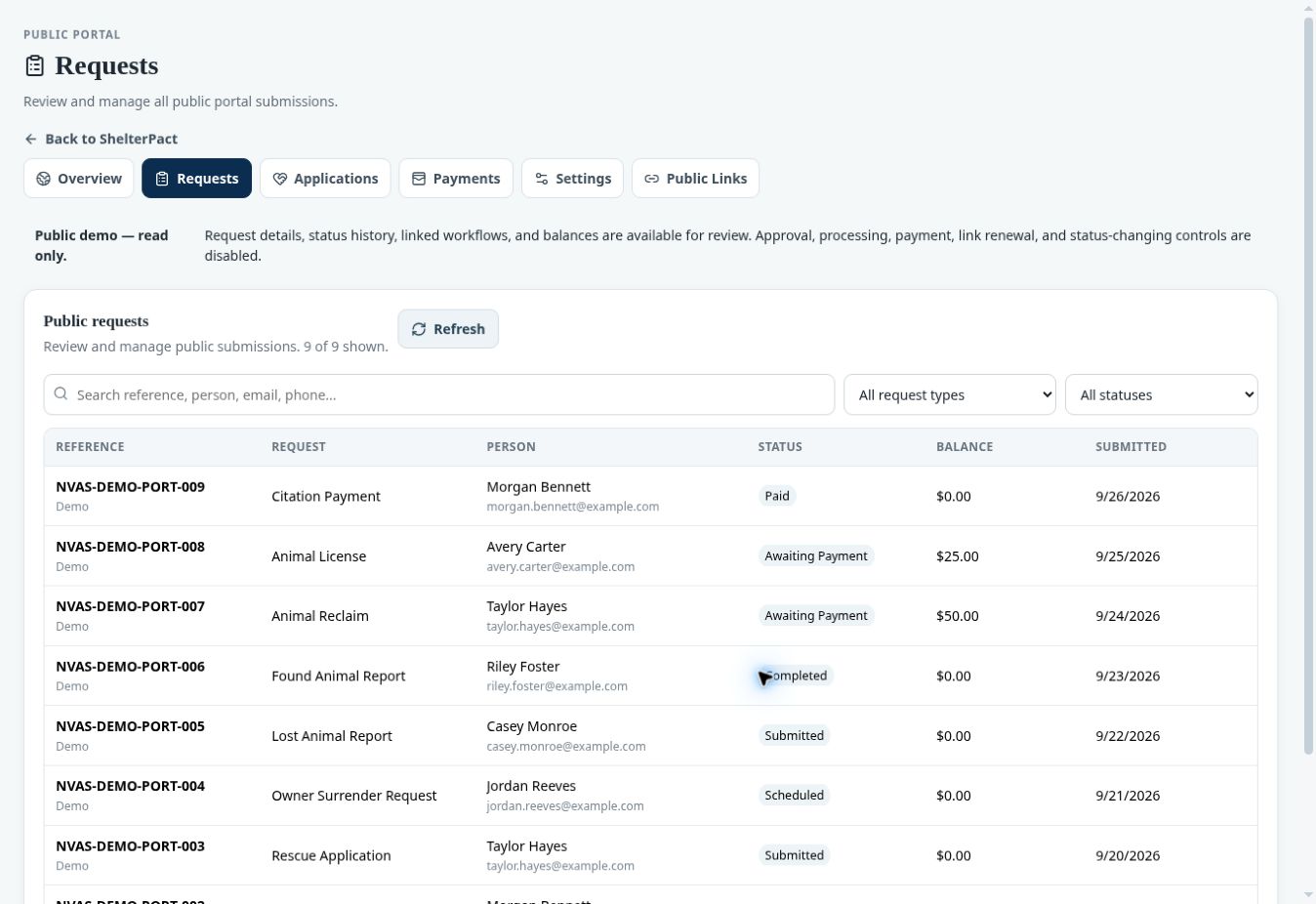
- Review Overview for recent requests, applications, and balances. Use Requests for all public submissions and Applications for adoption, foster, and rescue applications.
- Filter by request type and status, open the intended submission, and review information, attachments, status history, balance, and linked records/workflows.
- In a customer environment, use available authorized processing actions to review, request information, approve, schedule, or complete the appropriate work. The shared demo disables status-changing actions.
- Use Payments to review portal amounts, but treat Financial as the authoritative ledger. Check the linked charge and payment rather than assuming a displayed request status represents full ledger reconciliation.
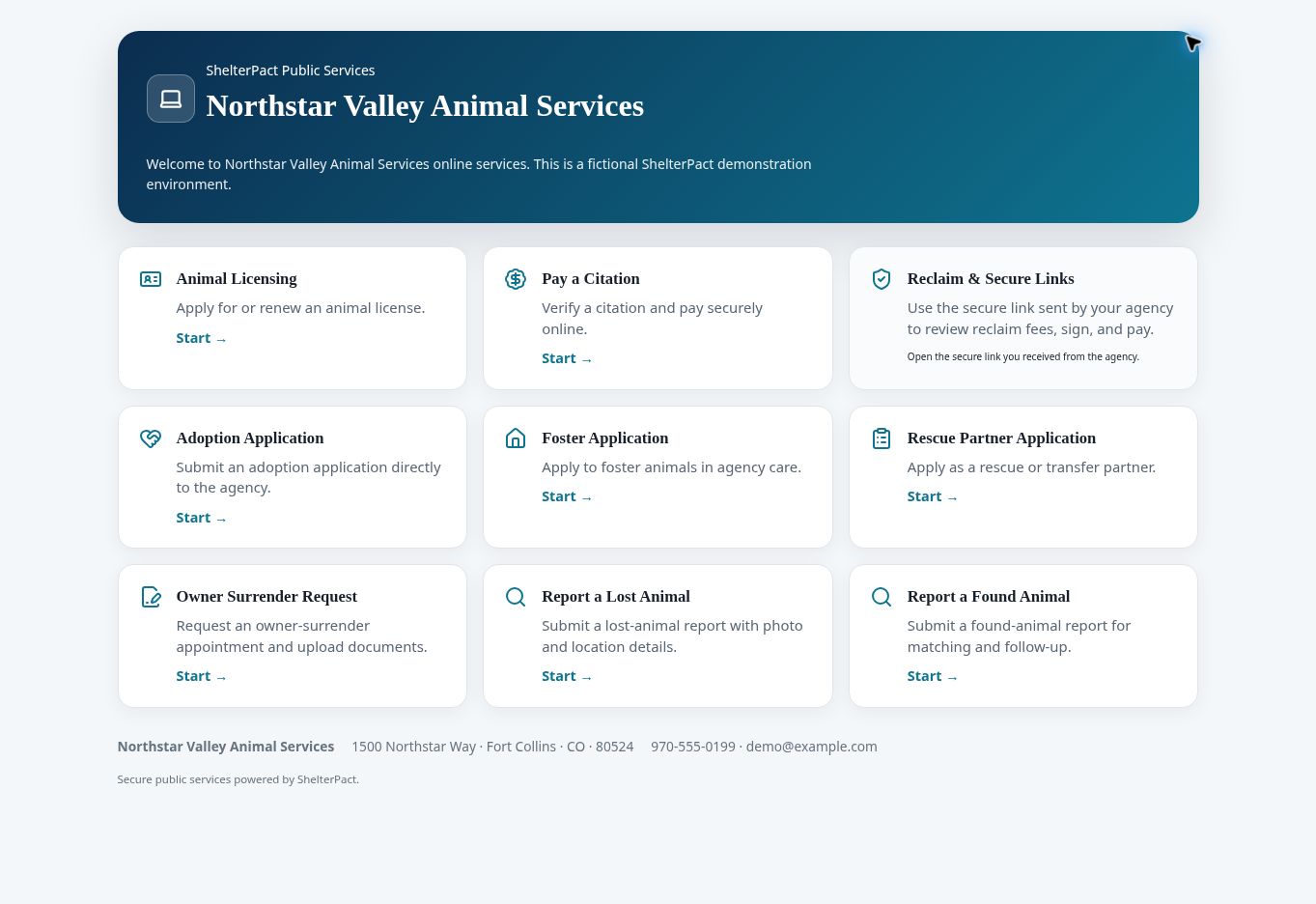
- Use Settings to review enabled services and instructions. Services include licensing, citation payments, reclaim links, applications, surrender requests, lost/found reports, and public status pages as configured.
- Use Public Links to open or copy the approved service link. Reclaims use the secure link issued by the agency rather than a general public reclaim search.
- Open Public Portal to inspect the citizen-facing page and verify branding, instructions, and enabled services. Review request status and the linked staff workflow after processing.
Screenshots
Practical checks
Do not mark a public request completed merely because it was submitted. Intake, adoption, payment, signing, and other operational events have their own completion requirements.
Troubleshooting
| What you see | What to check |
|---|---|
| Processing controls are disabled | The shared demo is read only for portal management, or your role may lack the required permission. |
| The citizen cannot find a service | Review enabled portal services and the correct organization link. |