
Review Users, Roles, and Effective Permissions
Users and Roles & Permissions show who can perform actions and which permissions a role enables. View access and management access are separate.
Before you beginOpen Settings → Users or Roles & Permissions. Confirm the intended staff identity before reviewing or changing access.
Step-by-step instructions
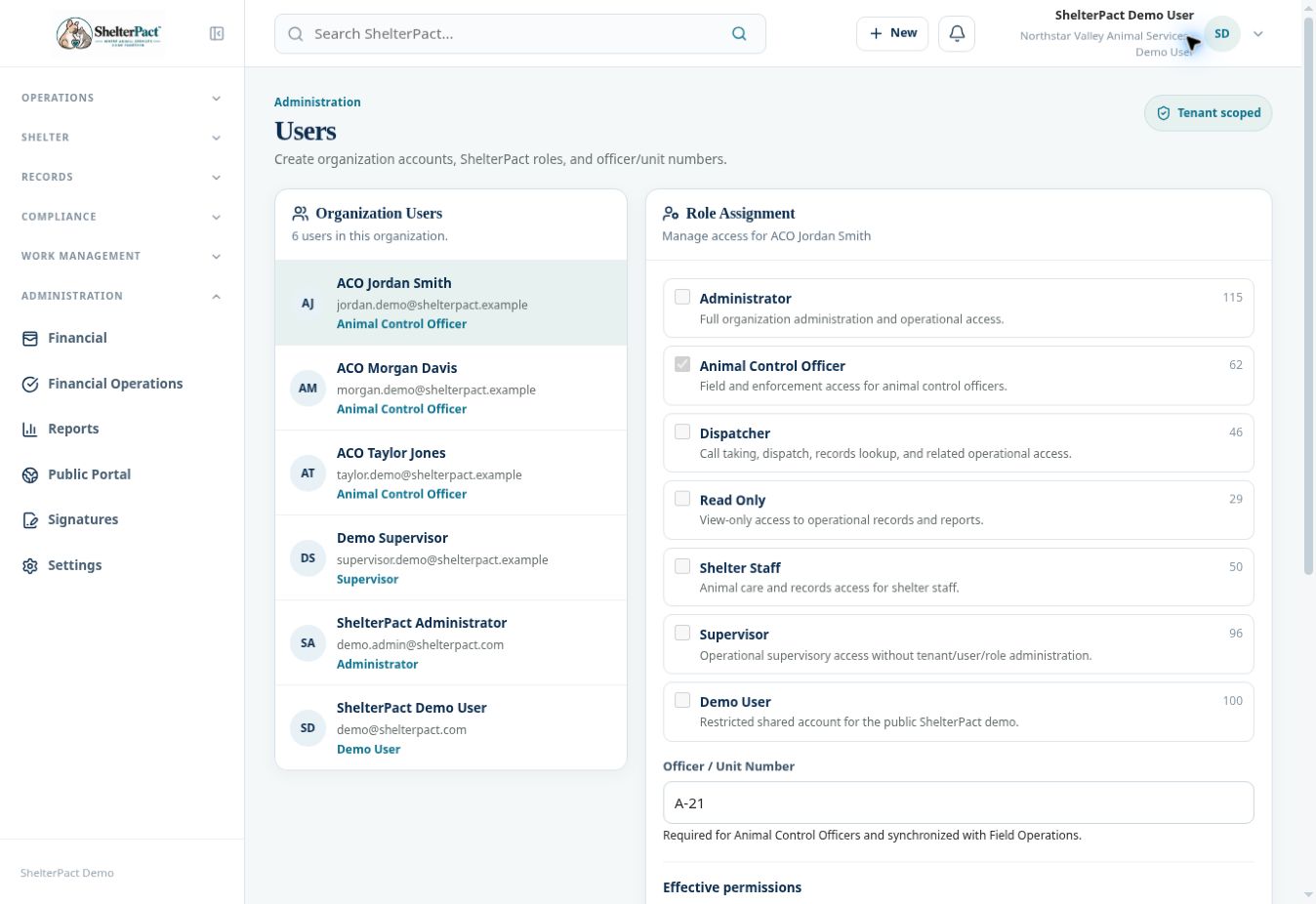
- In Users, select the staff member and review their assigned role and Effective permissions.
- Review the staff member’s operational duties. For an animal control officer, review Officer / Unit Number, which connects to Field Operations.
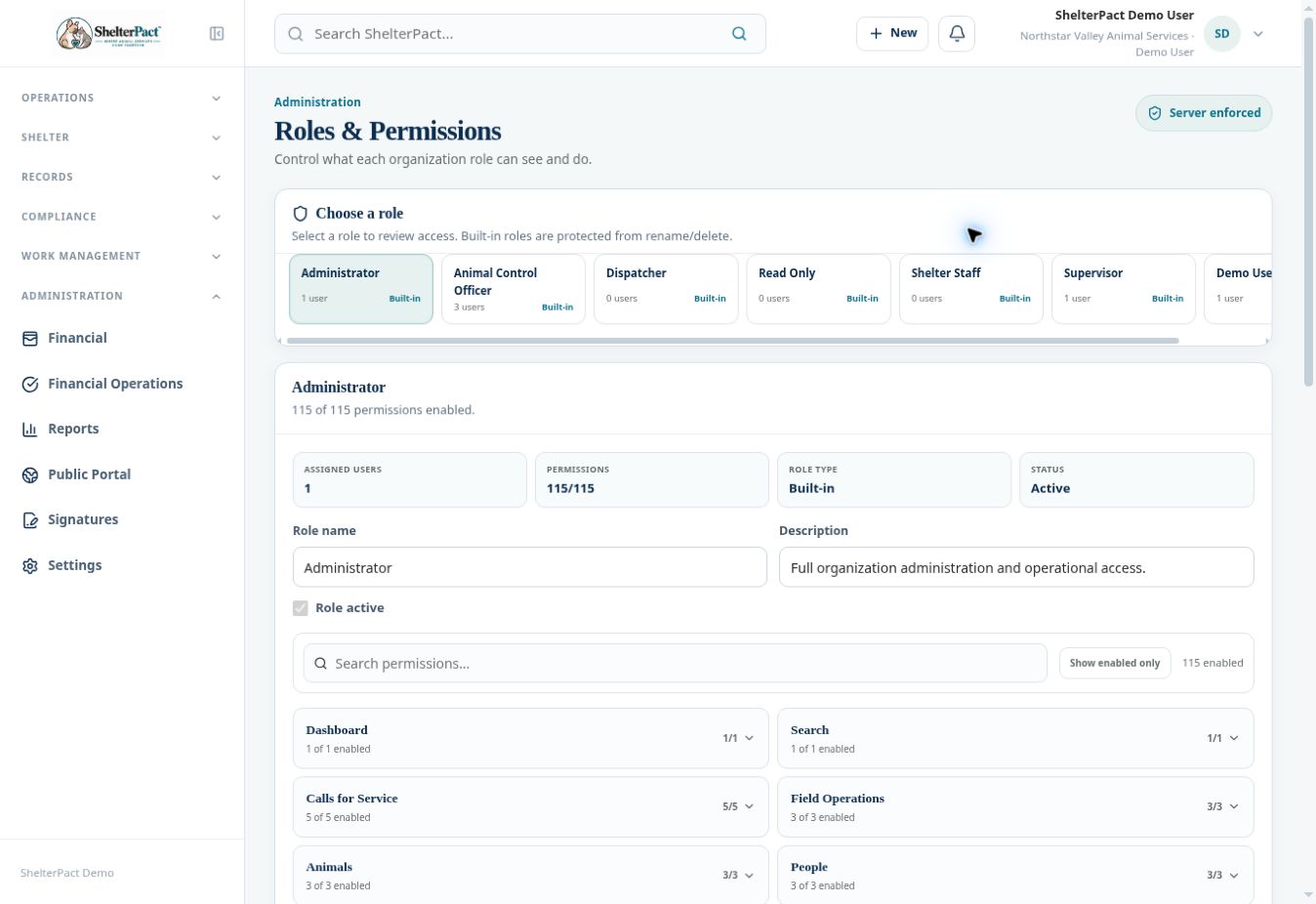
- In Roles & Permissions, select the role and review its name, description, active state, assigned users, and enabled categories.
- Review specific action access rather than assuming a role title grants everything. View, create, edit, close, export, sign, and management permissions differ.
- An authorized user manager can save an approved role assignment using Save Role Assignment. An authorized role manager can save approved role configuration using Save Role.
- Review the resulting assignment and effective permissions before the staff member begins the affected work.
- Preserve administrative recovery access. Built-in roles are protected from rename/delete, and Administrator remains the recovery role with all permissions in the inspected interface.
Screenshots
Practical checks
The shared demo can review user assignments but requires users.manage to change them. Account creation and security changes should be performed by the authorized administrator.
Troubleshooting
| What you see | What to check |
|---|---|
| A staff member sees a page but cannot act | Review the action-specific permission, not only the view permission. |
| An officer is missing expected unit information | Review the officer/unit number and Field Operations configuration. |