
Review Signatures, Final PDFs, and Document Revisions
Document Center gathers generated documents, signer progress, completion, final PDFs, delivery, revision history, and audit status.
Before you beginOpen Administration → Signatures. Confirm the document and source record before signing or completing anything.
Step-by-step instructions
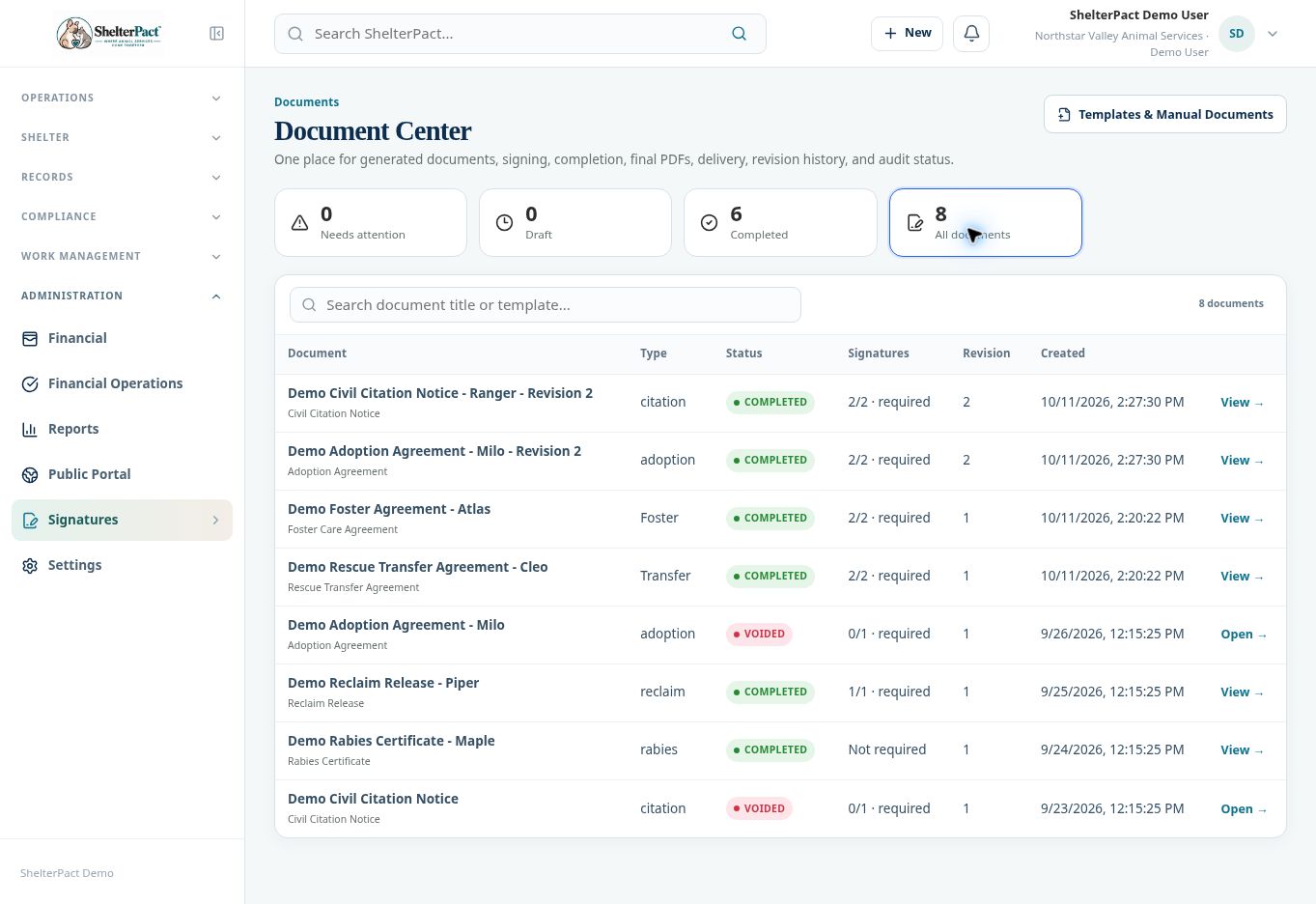
- Choose Needs attention, Draft, Completed, or All documents. Search the document title or template to locate the correct record.
- Open the document and review its linked animal, person, case, or workflow, content, template snapshot, and revision.
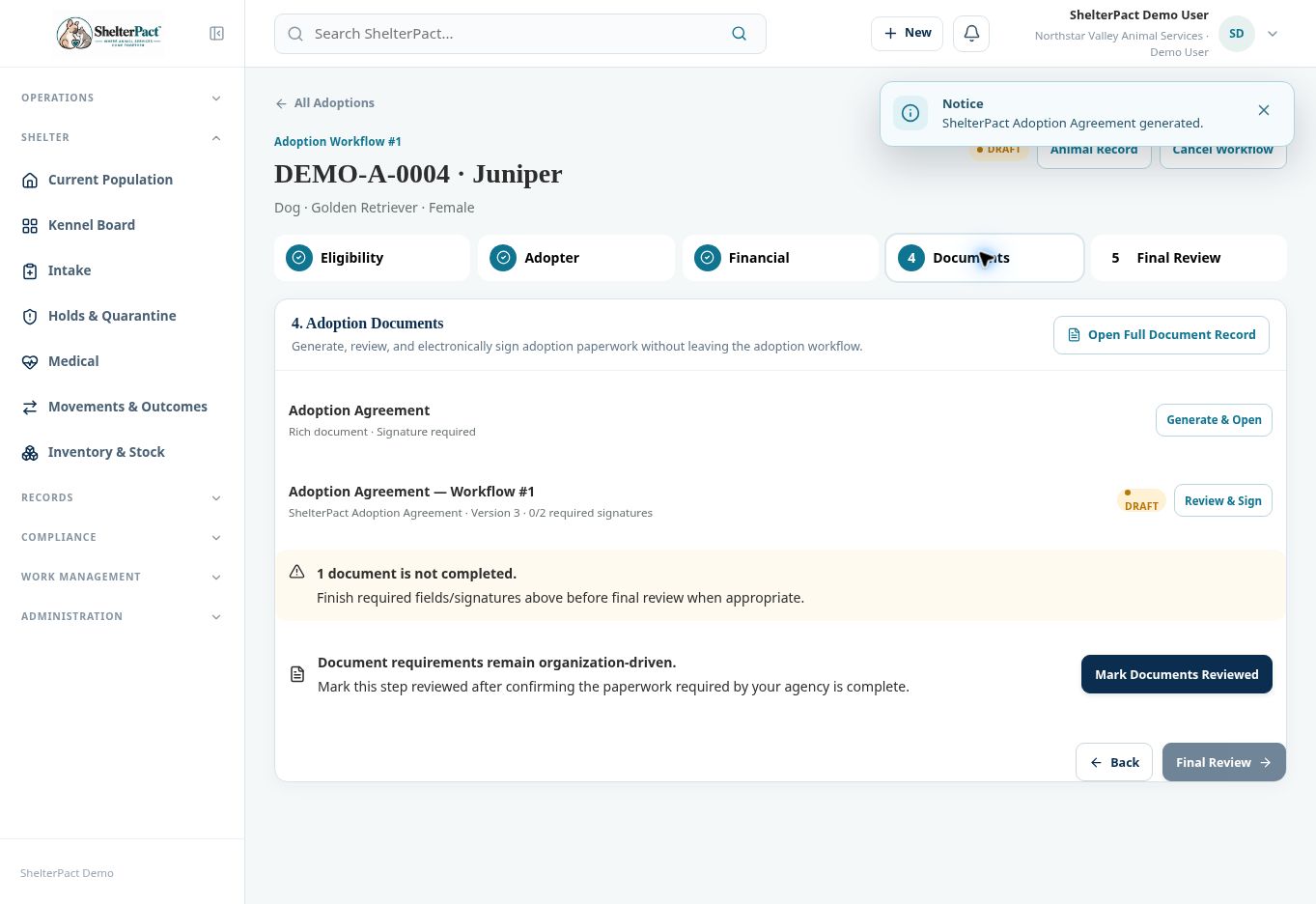
- Review every required signer slot. Use the supported in-person or remote signing process for the actual signer and authority; do not use a staff signature as another person’s signature.
- Complete required fields and signatures. Required signing blocks finalization until the configured slots are satisfied.
- Finalize through the displayed completion controls when authorized, then review the final PDF and its status.
- Use download, delivery, integrity, and history controls as available. Review the intended recipient before sending a document.
- For a material correction, use the document’s available revision/correction workflow. Keep prior versions and audit information rather than editing a signed final PDF outside the record process.
Screenshots
Practical checks
My Signature manages a staff signature. It does not remove the need to review the document or fulfill other signer roles.
Troubleshooting
| What you see | What to check |
|---|---|
| Finalization is locked | Review required fields, signer slots, and document status. |
| An old generated document differs from the updated template | That is expected snapshot behavior; use an appropriate revision process. |